

Dhruv Bhutani / Android Authority
Add Android Authority on Google:
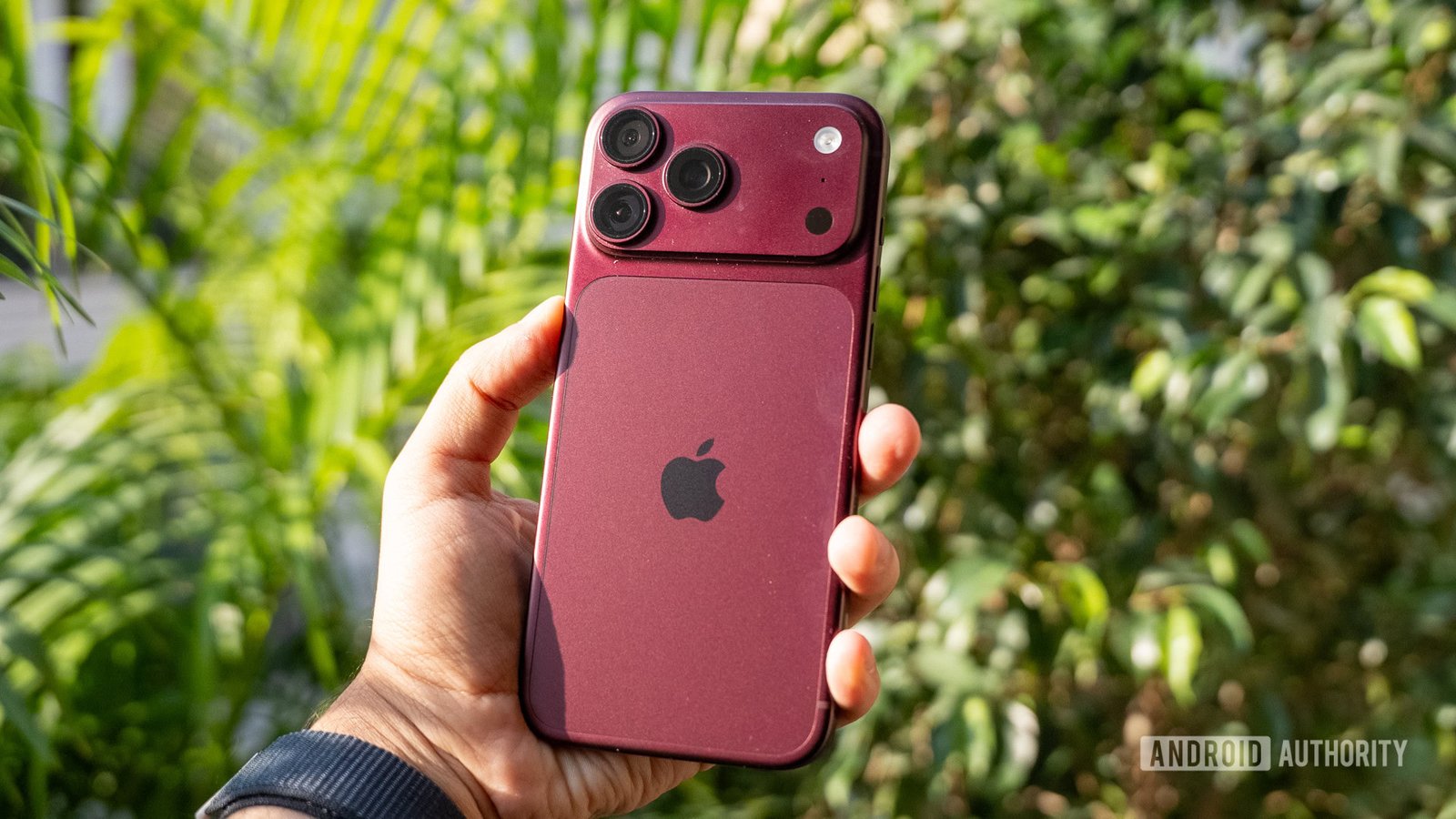
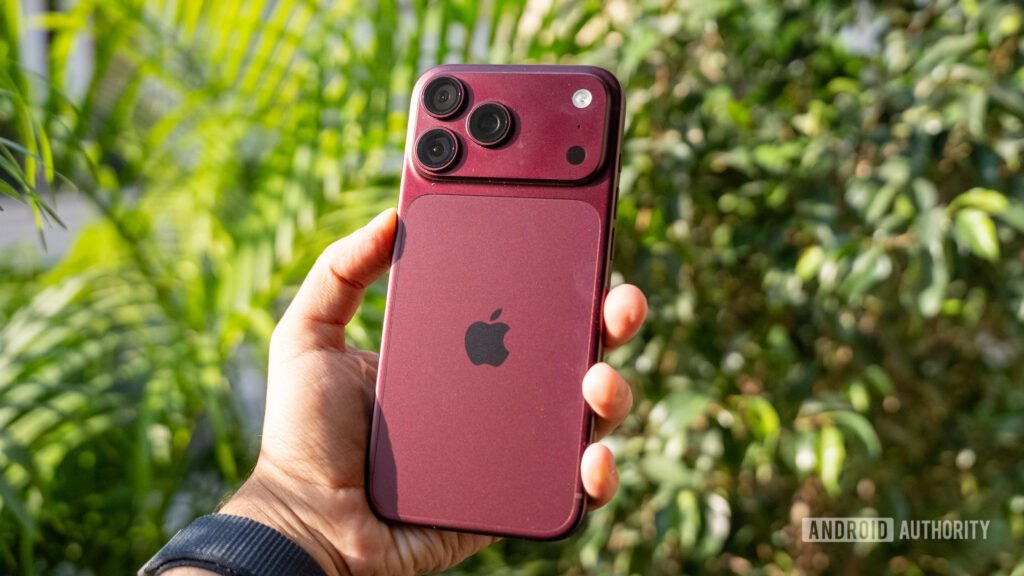
Android and iOS couldn’t be extra totally different, and I used to be reminded of that the second I switched from my Pixel 11 Professional XL to the iPhone 18 Professional. I’d spent a lot time on Android that I had nearly forgotten how various things work on an iPhone. And consider me, the primary day was fairly an adjustment. I saved attempting to swipe again from the suitable fringe of the display screen, solely to keep in mind that iOS doesn’t help Android’s common again gesture.
After all, I knew switching to an iPhone would imply giving up among the issues I’d grown accustomed to on Android. However that didn’t imply I needed to depart each acquainted behavior behind. So, earlier than I may correctly settle into utilizing the iPhone 18 Professional, I began exploring its settings to see how a lot of my Android expertise I may carry over. A couple of adjustments later, my iPhone began feeling way more acquainted, and these settings made the largest distinction.
What would you miss most for those who switched from Android to an iPhone?
16 votes
Inexperienced bubbles deserve some love, too

Shimul Sood / Android Authority
The very first thing I did after organising my iPhone 18 Professional was to allow RCS messaging. Most of my conversations occur by means of the Messages app, and since fairly a number of of my associates use Android telephones, I didn’t need texting them to really feel like a downgrade. With common SMS, you miss issues I’ve grown used to on Android, like learn receipts, typing indicators, and sharing high-quality photographs and movies.
iPhones now help RCS, which makes texting Android customers significantly better. This makes switching between Android and iPhone really feel much less inconvenient, particularly since I message all through the day. If you wish to allow RCS in your iPhone, right here’s how:
- Open the Settings app in your iPhone.
- Scroll right down to Apps and choose Messages.
- Below Textual content Messaging, faucet RCS Messaging.
- Toggle on RCS Messaging to ship and obtain supported messages over Wi-Fi or cellular information.
And that’s all it takes. It would look like a small change, nevertheless it made texting my Android associates really feel simply as acquainted because it did on my Pixel, which was precisely what I wished.
One notification at a time, please

Shimul Sood / Android Authority
Subsequent, I wished my iPhone notifications to really feel a little bit extra like Android. By default, iOS teams notifications right into a stack, which appears neat, however I’ve by no means actually been a fan. After spending a lot time with Android’s notification shade, the place I can shortly scroll by means of my alerts and see what’s occurring, having every little thing piled on high of one another felt a little bit unusual.
By default, iOS teams notifications right into a stack, which appears neat, however I’ve by no means actually been a fan.
Fortunately, Apple allows you to change how notifications seem in your lock display screen, and switching to the Record view made issues really feel way more acquainted. Right here’s how you are able to do it, too:
- Open the Settings app in your iPhone.
- Scroll down and faucet Notifications.
- Below Show As, choose Record as a substitute of Stack.
And that’s all there’s to it. Your notifications will now seem in an inventory on the Lock Display screen, making it simpler to scroll by means of them with out increasing a stack first. It doesn’t fully recreate Android’s notification shade, nevertheless it’s a lot nearer to what I’m used to, and that’s adequate for me.
Apple’s defaults aren’t my defaults

Shimul Sood / Android Authority
One other factor I wished to kind out was the default apps on my iPhone. One factor I really like about Android is having the ability to select which apps I wish to use for just about every little thing. And whereas Apple has its personal apps for shopping, emailing, and different duties, I didn’t essentially wish to begin utilizing all of them simply because I’d switched to an iPhone.
As an example, I’ve used Chrome as my major browser and Gmail for emails for years, so switching to Safari and Apple Mail would simply imply getting used to a different set of apps. Fortunately, iOS allows you to change a number of default apps, which suggests I may carry a few of my acquainted Android setup straight to my iPhone 18 Professional. I changed Safari with Chrome, switched from Apple Mail to Gmail, and explored the opposite choices to see what else I may customise.
If you wish to do the identical, right here’s how:
- Open Settings in your iPhone and go to Apps.
- Faucet Default Apps on the high.
- You’ll see totally different classes, together with Electronic mail, Messaging, Calling, Browser App, and Name Filtering, amongst others.
- Open every class and choose the app you’d desire to make use of, so long as it’s put in and helps being set because the default.
As soon as I’d made these adjustments, I now not had to consider which app would open every time I tapped a hyperlink or an e mail deal with. My iPhone began utilizing the apps I used to be already comfy with, which made the transition from Android a lot simpler.
80% is the candy spot

Shimul Sood / Android Authority
One function I didn’t wish to depart behind on my Pixel 11 Professional XL was the 80% charging restrict. I’ve been utilizing it for fairly a while now, primarily as a result of I wish to maintain my cellphone’s battery in fine condition for so long as doable. I don’t at all times want a full cost to get by means of the day, so limiting it to 80% appears like an affordable trade-off if it helps cut back battery put on in the long term.
Apple presents an identical function on the iPhone 18 Professional, so I didn’t have to vary my charging habits after switching. In reality, setting it up was simply as straightforward because it was on my Pixel. Right here’s how one can allow it:
- Open the Settings app in your iPhone.
- Scroll down and faucet Battery.
- Choose Charging.
- Alter the Cost Restrict slider to 80% as a substitute of 100%.
And that’s all there’s to it. Your iPhone will now usually cease charging at 80%, though it could sometimes cost to 100% to keep up correct battery-level estimates. Preserving the restrict at 80% will help cut back battery put on over time, particularly for those who have a tendency to go away your cellphone plugged in for lengthy intervals.
Preserving the lights low, Pixel-style

Shimul Sood / Android Authority
Lastly, I wished the All the time-On Show on my iPhone 18 Professional to look a little bit extra just like the one on my Pixel 11 Professional XL. I’ve at all times most well-liked Google’s method to the All the time-On Show: a clear, black background with solely the important data seen. Apple’s model, however, feels a little bit too busy for my liking, particularly with the wallpaper and notifications displaying up even when the cellphone is locked.
Apple allows you to customise what seems on the All the time-On Show, and turning off simply two choices made an enormous distinction.
Fortunately, I didn’t need to reside with that. Apple allows you to customise what seems on the All the time-On Show, and turning off simply two choices made an enormous distinction. Right here’s how you are able to do the identical:
- Open the Settings app in your iPhone.
- Scroll down and choose Show & Brightness.
- Faucet All the time On Show.
- Flip off Present Wallpaper and Present Notifications.
My iPhone 18 Professional now has a a lot cleaner, largely black All the time-On Show, with the clock and different important data nonetheless seen. It’s a lot nearer to the minimal look I beloved on my Pixel, and my wallpaper now not lights up the display screen each time I look at my cellphone.
You possibly can take me out of Android, however…

Aamir Siddiqui / Android Authority
These adjustments helped me really feel extra at house on my iPhone 18 Professional. Now, you is perhaps questioning why I’d change to an iPhone solely to make it behave extra like an Android cellphone. Truthful query. I actually wished to expertise what Apple has to supply with out giving up every little thing I’ve grown accustomed to over time.
I’m nonetheless exploring iOS and getting used to how issues work otherwise, which is a part of the enjoyable of testing a brand new cellphone. On the similar time, I don’t see why I ought to drive myself to vary habits that already work completely nicely for me, particularly when Apple lets me maintain them.
So, for those who’re contemplating transferring from Android to iPhone, I’d advocate attempting these adjustments. They gained’t remedy each frustration or make iOS behave precisely like Android, however they’ll actually make these first few days really feel much less unfamiliar. Switching telephones ought to be about having fun with one thing new, not continuously wishing you continue to had your outdated one.
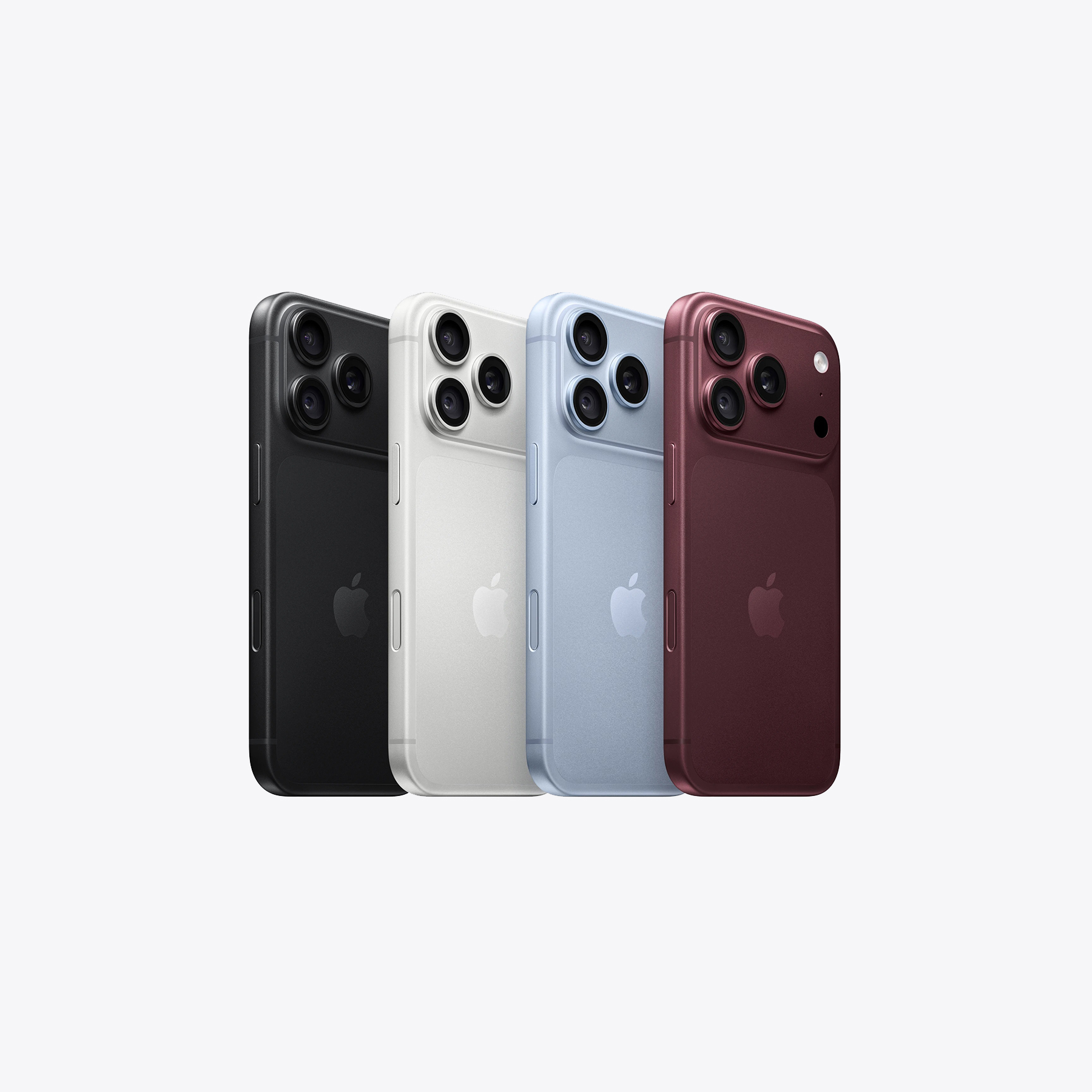
Apple iPhone 18 Professional
The iPhone 18 Professional combines cutting-edge energy and professional-grade images into a snug 6.3-inch body. Powered by the blazing 2nm A20 Professional chip, it introduces a mechanical variable-aperture 48MP fundamental digicam for wonderful low-light efficiency and artistic focus management. It’s the final alternative for customers searching for peak flagship efficiency, upgraded Siri AI, and all-day battery life with out the majority of a bigger machine.